How to use VLOOKUP in you monday board
VLLOKUP is an essential functionality in an Excel file. Wouldn’t it be great if you could implement the same functionality on your monday.com board data.…
VLLOKUP is an essential functionality in an Excel file. Wouldn’t it be great if you could implement the same functionality on your monday.com board data. Let’s see how we can do it.
Start with downloading the following app from monday.com marketplace: https://monday.com/marketplace/listing/10000730/spreadsheet-for-monday. You will immediately get started on a free trial once you install the app.
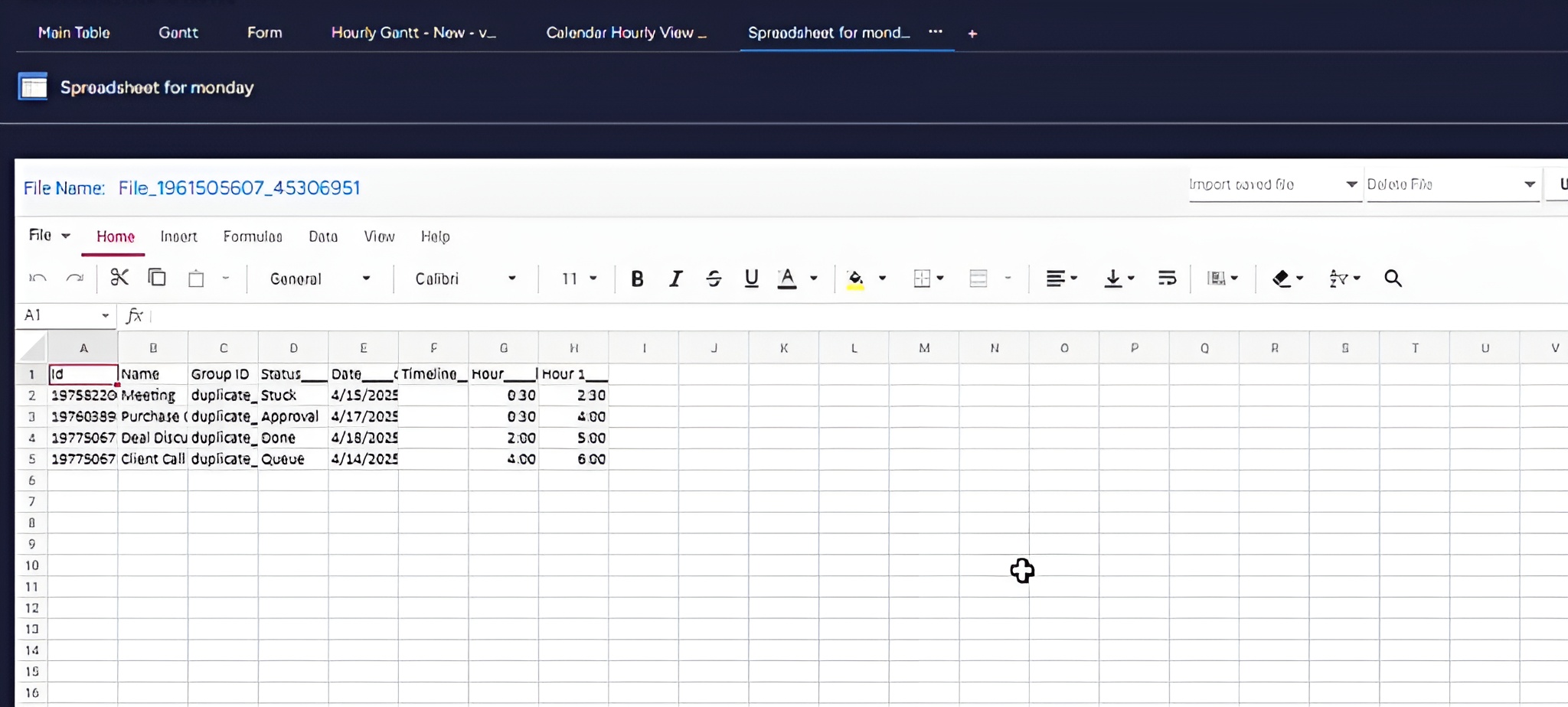
Step - 2: Open the Spreadsheet for monday app on your monday board. You’ll see the following screen.
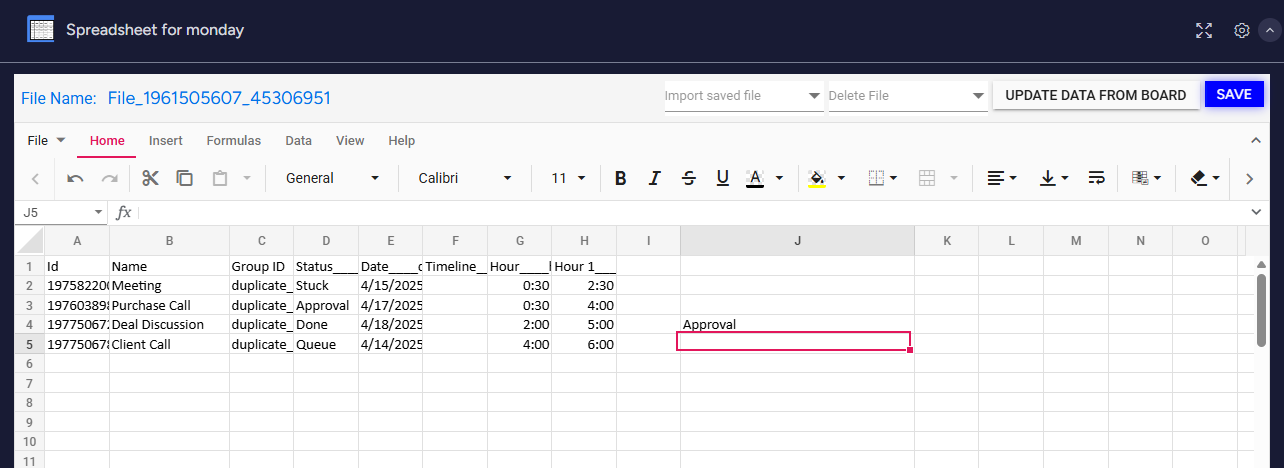
Step - 3: Let’s apply VLOOKUP to this board data. We will try to find status for a specific task. For this we will use the formula for VLOOKUP as we would in a Excel file:. Type in ‘=’ sign followed by VLOOKUP
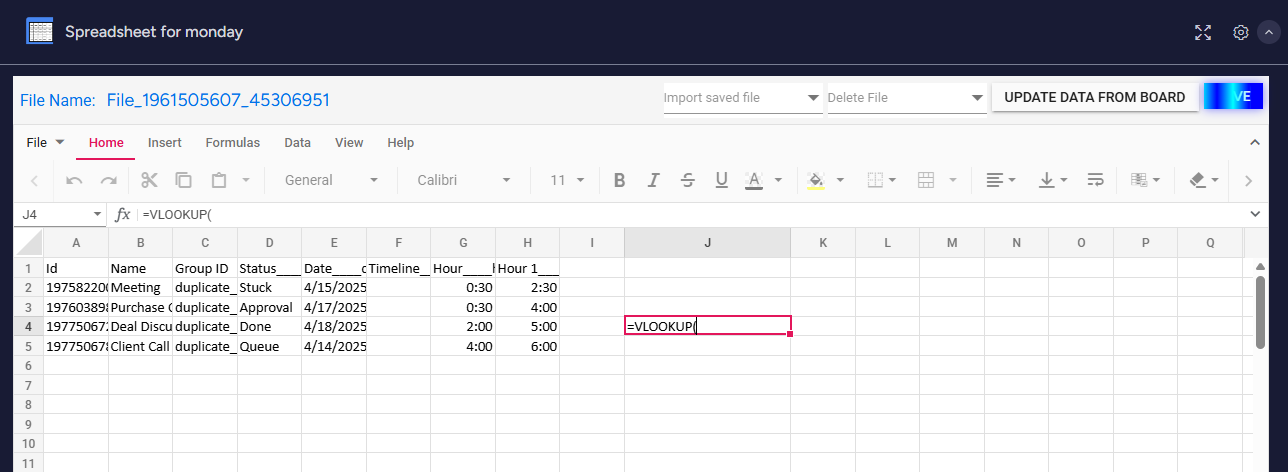
Step - 4: Select the cell you want to search against. Here We are selecting B2.
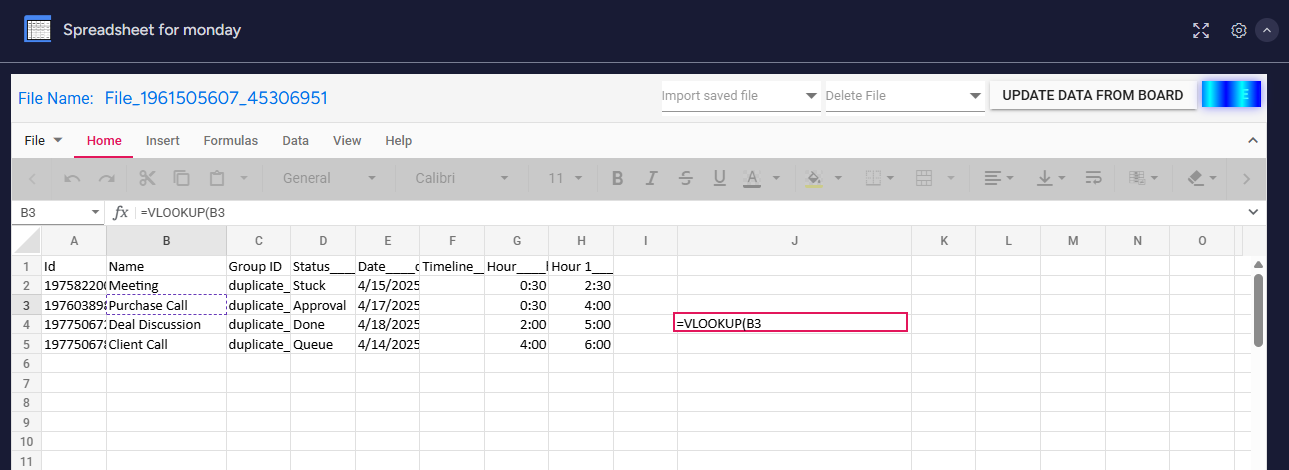
Step - 5: Select the range of the table you want to search in keeping the cell we selected at first in as the first column.
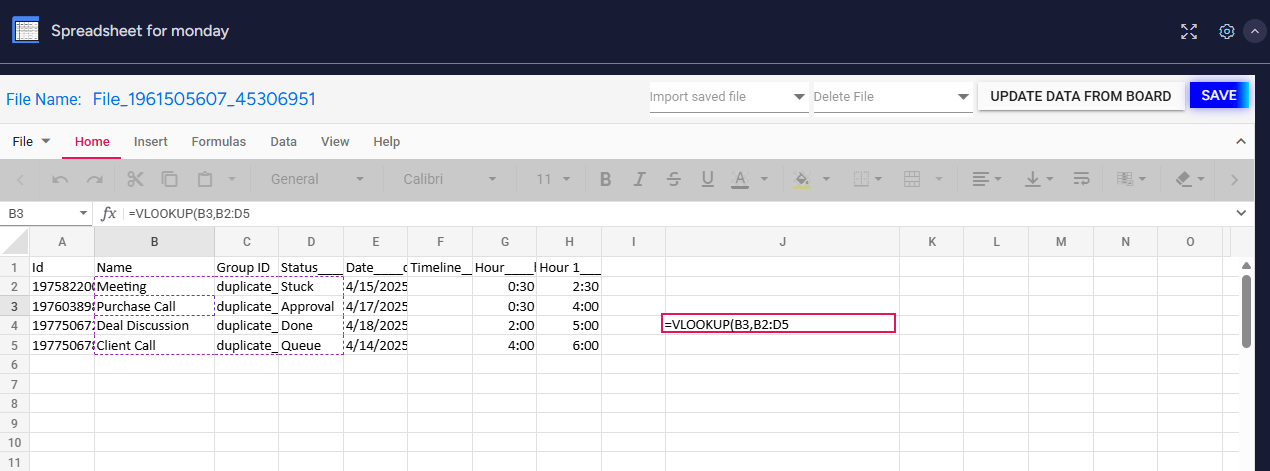
Step - 6: Select the column number in the cell range as well as if you want an exact match using TRUE or FALSE at the end.
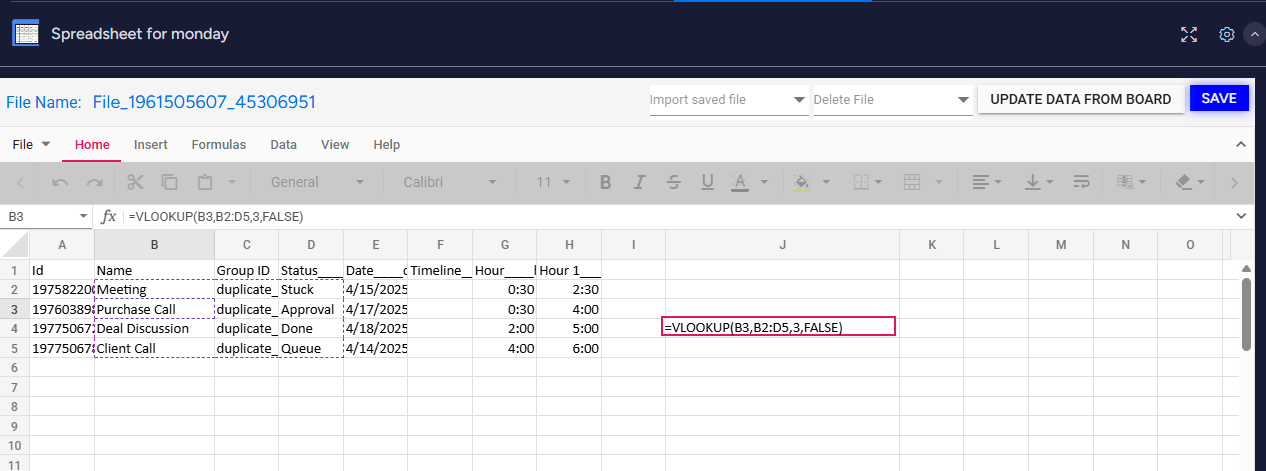
Step - 7: We have created our first VLOOKUP formula using our monday board data.